Thursday, October 29, 2009

The Promise of Music is to love and to serve.

The power of universal love to open the hearts of all beings on space station Earth.

Tuesday, October 20, 2009

JESUS appears!!! OCT 20, 2009 King Street Park

Finding unity in the chaos!!!
An exercise in creative imagination.
We did this together.
Everyone participated...
and
A star is born.

Lighting & Special Effects

Look what you can do today:
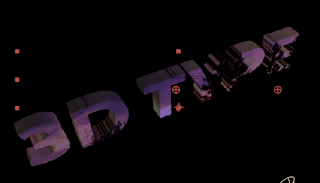


Lighting may be found inside some special effects.
For instance, Shatter includes lights and cameras



TRY THIS EXERCISE

___ new comp
___ type "3D TYPE"
___ Effect > Simulation > Shatter

set Shatter effect controls:
___ Shatter: Shape / Custom Shatter Map - 1. 3D TYPE layer
___ Shatter: Shape / Extrusion Depth ... vary the slider (or set to a value)
___ Shatter: View - Rendered

[Notice the 2D layer now looks 3D ]
Shatter effect controls:
Fill out the sides of the 3D text:
___ Textures: Side Mode - set to Color, white
--------------------------------------------------------------------------

Fixed Tiles
if you check the box "White Tiles Fixed",
the tiles will not move/shatter, and you end up with 3D extruded type.
--------------------------------------------------------------------------

LIGHTING
set Shatter effect controls:
___ Shatter: Lighting / Light Intensity
___ Shatter: Lighting / Light Color
___ Shatter: Lighting / Light Depth
___ Shatter: Lighting / Ambient Light

-----------------------------------------------

ADD A LIGHT Layer AND ATTACH IT TO THE SHATTER EFFECT
Layer > New > Light
set Shatter effect controls:
___ Shatter: Lighting / Light Type : First Comp Light
-----------------------------------------------

ADD A CAMERA
Layer > New > Camera
try a 35mm camera

Attach the light to the effect:
set Shatter effect controls:
___ Camera System: Comp Camera

Use the Orbit tool (C) to move the camera around the type
-----------------------------------------------


ADD A TEXTURE TO THE TYPE

___ add a jpg to the timeline

set Shatter effect controls:
___ Textures: Front Mode - Layer
___ Textures: Front Layer - set to the layer with the jpg in it

___ Hide the layer in the timeline
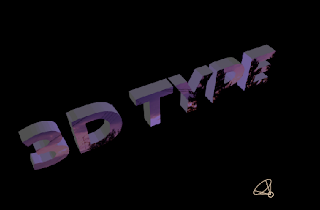


Continue and set Shatter effect controls:
___ Textures: Side Mode - Layer
___ Textures: Side Layer - set to the layer with the jpg in it

___ Textures: Back Mode - Layer
___ Textures: Back Layer - set to the layer with the jpg in it


-------------------------------------------------------------------------

Lots of fun...

have a great day !!!

KINETIC with lights

This week we take a look at lights and lighting effects.

There are four types of lights:
1) Parallel Light: Think of this light source located infinitely far off in the distance. Imagine it's like the sun.
2) Spot Light: This light has a position and source location you can define. THis is a typical light used in concert, theatre, and film production.
3) Point Light: This is an omnidirectional light. Imagine a light bulb here.
4) Ambient Light: No position. It just illuminates the scene. ( It has no icon in the Comp window)

This video example uses two lights, with the spot set as an adjustment layer.
• 3D type
• Spotlight within an adjustment layer
• Ambient light

"Place" is at the root of this poem

Take a deep look at your poem.
Look for the light, object and shadow.
In other words, look for the adjectives and nouns, adverbs and verbs. These will help with how you animate the story.

If "place" is at the center of the whole, then everything must be centered upon what "place" is, what it means to be in-place, to be placed, to place, place. The concept of "place" holds the whole thing together. The story of this TV station is all about "place."


Deconstruct your kinetic poem. Find it's essence/center point. Everything will flow out from this place. :-)

Monday, October 19, 2009

Adjustment Layer

When you set a Light to be an Adjustment Layer (set the layer switch), the light only affects the layers directly below it in the Timeline, even if the light is shining directly on the object in space.


Adjustment layer removed:

ANIMATE THE LIGHTS


ANIMATE THE LIGHTS
to lighten the scene over time

10 second time set in the comp

AMBIENT LIGHT
Set Ambient Light inTensity value to change over time:
___ move CTI (Current Time Indicator) to 5s
___ select Ambient Light, press T (inTensity)
___ click the Stopwatch to set a Keyframe

___ move the CTI to 2s
___ change inTensity to 0%

HOLD DOWN OPTION AND SCRUB THROUGH THE TIMELINE FROM 2s to 5s
to see the lighting inTensity change

SPOT LIGHT
Set Spot Light inTensity value to change over time:
___ move CTI (Current Time Indicator) to 5s, or Go To Time: 5;
___ select Spot Light, press T (inTensity)
___ click the Stopwatch to set a Keyframe

___ move the CTI to 2s, or Go To Time: 2;
___ change inTensity to 0%


Light flickers over time example:
Set Spot Light inTensity value to change over time:
At 1:28, 100%
At 1:26, 0%

At 1:24, 100%
At 1:21, 0%

At 1:18, 100%
At 1:15, 0%
------------------------------------------------------